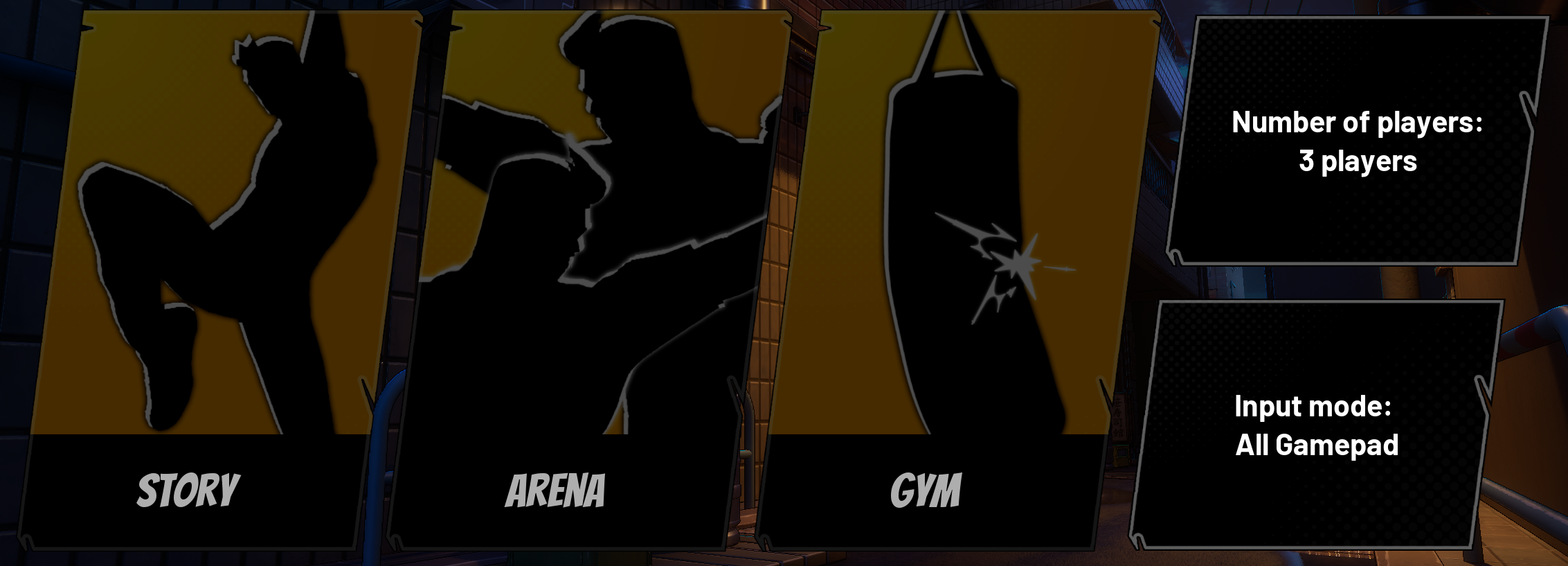
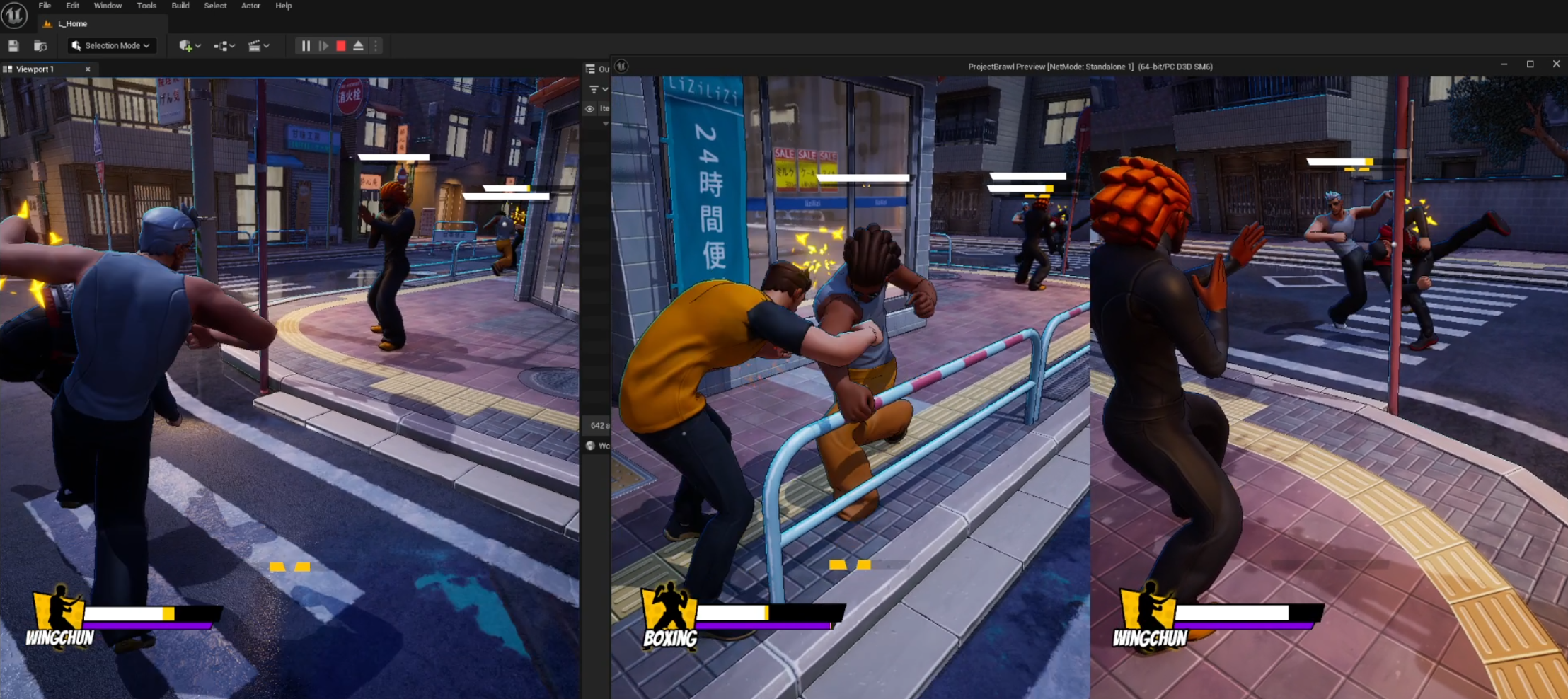
It’s been a while since my last blog post! Recently, I’ve been fully focused on developing my game Project Brawl - a beat ’em up with local co-op and multiplayer support. And as the title suggests, I ran into quite a few headaches while developing the local co-op features.
Although Unreal technically supports splitscreen out of the box, there’s almost no proper documentation from Epic explaining how to actually use it in a real project. Every tutorial out there just says something like:
“Go to Project Settings, enable Use Splitscreen, and call CreateLocalPlayer().”
So I thought, “Local multiplayer? Easy! Let’s do it!” — and then spent weeks struggling to make Unreal’s already supported feature work as expected. Hopefully, by sharing what I’ve learned here (mostly random stuff), I may save you a lot of that time and frustration and help you get your game local-coop ready much faster 😄
All of the local players are stored in the GameInstance. To create and remove a local player it’s quite simple as calling function.
ULocalPlayer*CreateLocalPlayer(int32ControllerId,FString&OutError,boolbSpawnPlayerController);ULocalPlayer*CreateLocalPlayer(FPlatformUserIdUserId,FString&OutError,boolbSpawnPlayerController);// Becareful when using this, as you can accidentally remove the primary local player
boolRemoveLocalPlayer(ULocalPlayer*ExistingPlayer);
Notes:
Make sure you enable Use Splitscreen in Project Settings > Maps & Modes > Local Multiplayer, if you wish to have the screen to be split for each local player. If all of the local players share the same screen, then you don’t need to enable this.
If you have no clue how to get the ControllerId or UserId and just want to spawn a new player, just use ControllerId -1. It should automatically create a new LocalPlayer for you.
You should always spawn the player controller (by setting bSpawnPlayerController = true). There are no reason you want to spawn the LocalPlayer without PlayerController since it will automatically spawn a PlayerController for you after switching level. The only reason I can see you doing this is: It’s middle of the game, you still want to create a LocalPlayer but not actually doing anything because the game is in progress. And it will automatically spawn the PlayerController after the game ends and switch level. But why letting that, instead just wait until the game finishes? It will create more unexpected behaviors (believe me, I go through the hard way)
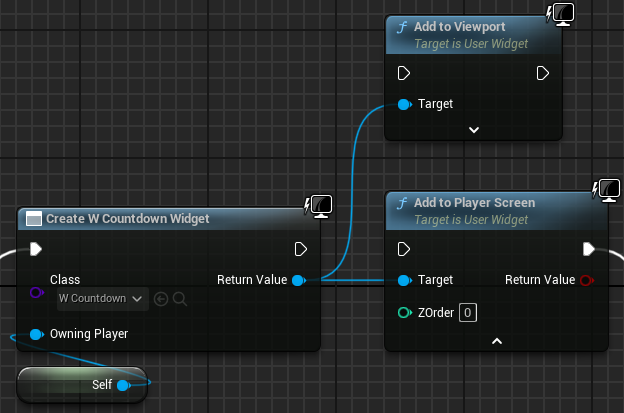
Unreal provides 2 functions to add widgets to the screen:
UUserWidget::AddToViewport(int32 ZOrder)
Adds the widget to the global viewport (overlaps all splitscreens when the screen is split)
Use this for global widgets like:
Pause menus
Main menus
Global announcements
UUserWidget::AddToPlayerScreen(int32 ZOrder)
Adds the widget to a specific local player’s viewport
Which player’s screen receives the widget depends on the OwningPlayer (PlayerController) you pass when creating the widget
Use this for player-specific widgets like:
Player HUD
Player’s local pause menu / settings (like in Lyra)
⚠️ Important: Always assign the OwningPlayer when creating widgets. If left blank, Unreal automatically assigns it to the first Local Player (primary player), or to itself if called from within a PlayerController (see UUserWidget::CreateWidgetInstance for details). While this works for single-player games, local co-op games need deterministic ownership to function correctly.
When creating character health bars, you’ll likely use WidgetComponent to display widgets in either World Space or Screen Space. While both look similar, they behave very differently in local co-op:
World Space:
Renders the widget on a mesh
Visible to any players seeing that mesh
Screen Space:
Widget behaves as if in world space, but is added to A OWNING PLAYER’S SCREEN
TL;DR: In a 4-player co-op game with Screen Space widgets, only the owning player will see other’s health bar and the other 3 players won’t see anything at all.
Even worse: Unreal’s implementation is non-deterministic and changes between engine versions:
Unreal 5.4 and below: The FIRST local player becomes the owner, meaning only the FIRST player sees the widget
Unreal 5.5 and above: If the WidgetComponent is attached to a Pawn with a PlayerController, that player becomes the owner, meaning players can only see health bars on themselves, but cannot see others’ health bars in their viewports.
Solution:
There are solutions on the internet that suggest that you should manually create each WidgetComponent for each local player and assign ownership accordingly. However, this approach is tedious, error-prone, and can break with engine updates. So instead, here’s my take:
Create an Actor Component that manages WidgetComponents to ensure all players see all Screen Space widgets, remaining stable across engine versions:
On Initialization:
Find all WidgetComponents (Screen Space only) on the actor
Store them in an “Original List”
Disable each original by calling SetWidget(nullptr)
For each LocalPlayer currently in the game, run the “LocalPlayer Added” logic below
Listen for LocalPlayer added/removed events (from GameInstance) and run the respective logic
When a LocalPlayer is Added:
For each WidgetComponent in the Original List:
Create a new WidgetComponent instance
Copy all settings from the original
Call UWidgetComponent::SetOwnerPlayer() with the newly added LocalPlayer
Store this cloned widget component for later cleanup
When a LocalPlayer is Removed:
For each cloned widget component:
Check if its OwnerPlayer matches the removed player
If yes, destroy/remove that cloned widget
Notes:
Each widget component will now have N copies (where N = number of local players)
It’s recommended that the widget components should hook into game events to update all copies simultaneously
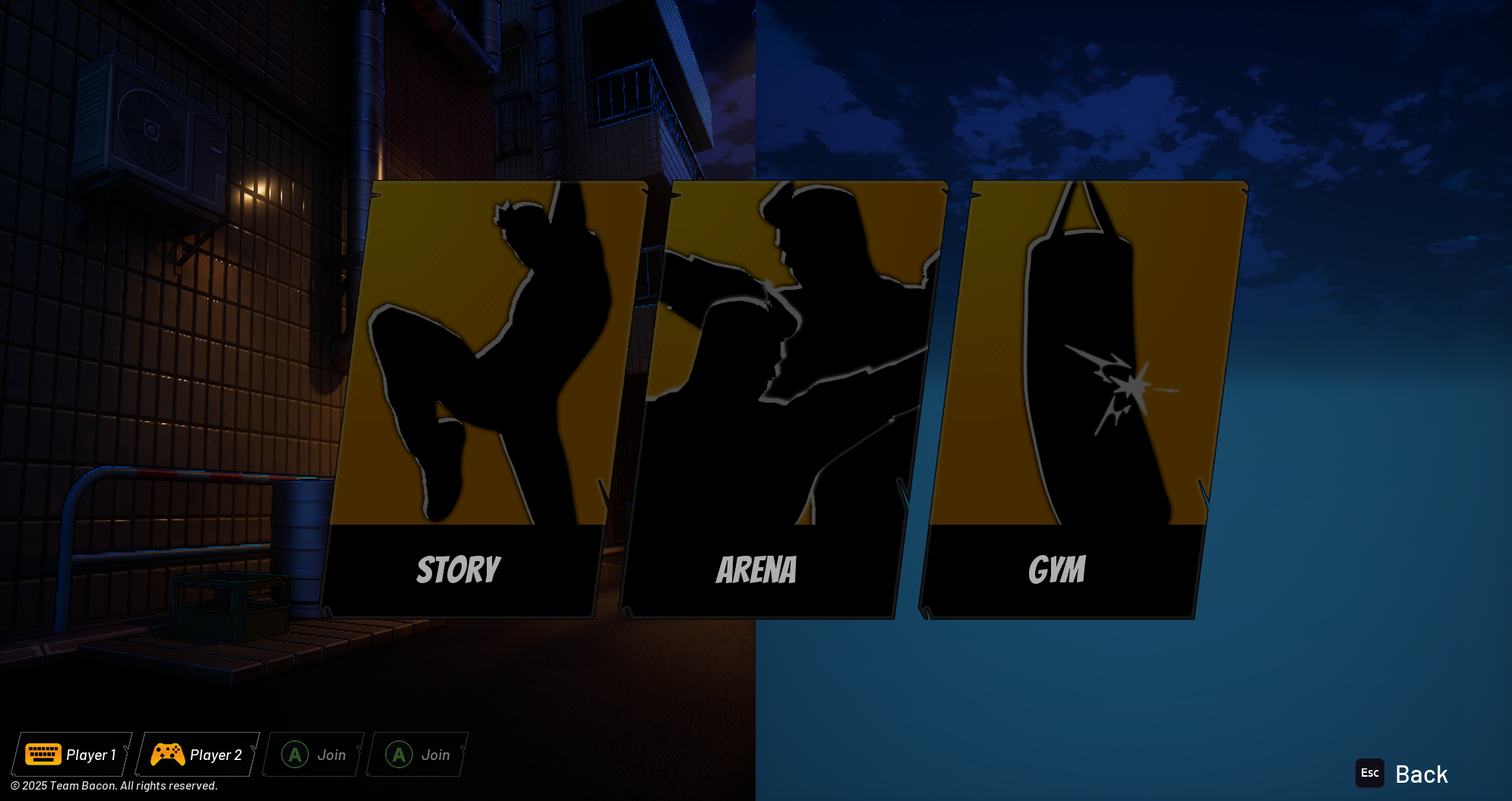
This is different than ingame UIs since ingame UIs are displayed separately for each local players. For main menu UI, most games use one single screen to display the menu.
Problem:
If splitscreen is still active, the menu appears across multiple viewports, causing the screen to be split even though you only want one unified menu display.
Solution:
Use UGameplayStatics::SetForceDisableSplitscreen(GetWorld(), bDisable);. This forces the game to use one fullscreen viewport, allowing the menu to display correctly.
1.4.2 Decide who can control and interact with the Menu#
Only the primary player can control the Menu Most games do this, and it’s the default behavior in Unreal.
Every local players can control the Menu with the same pointer This easily becomes chaotic. I wouldn’t recommend this but if you still want to do this, use IPlatformInputDeviceMapper::Internal_ChangeInputDeviceUserMapping to map every input device of other local player to the primary local player. By doing that, every devices now have control of the menu. But make sure to returns it back once you’re in-game.
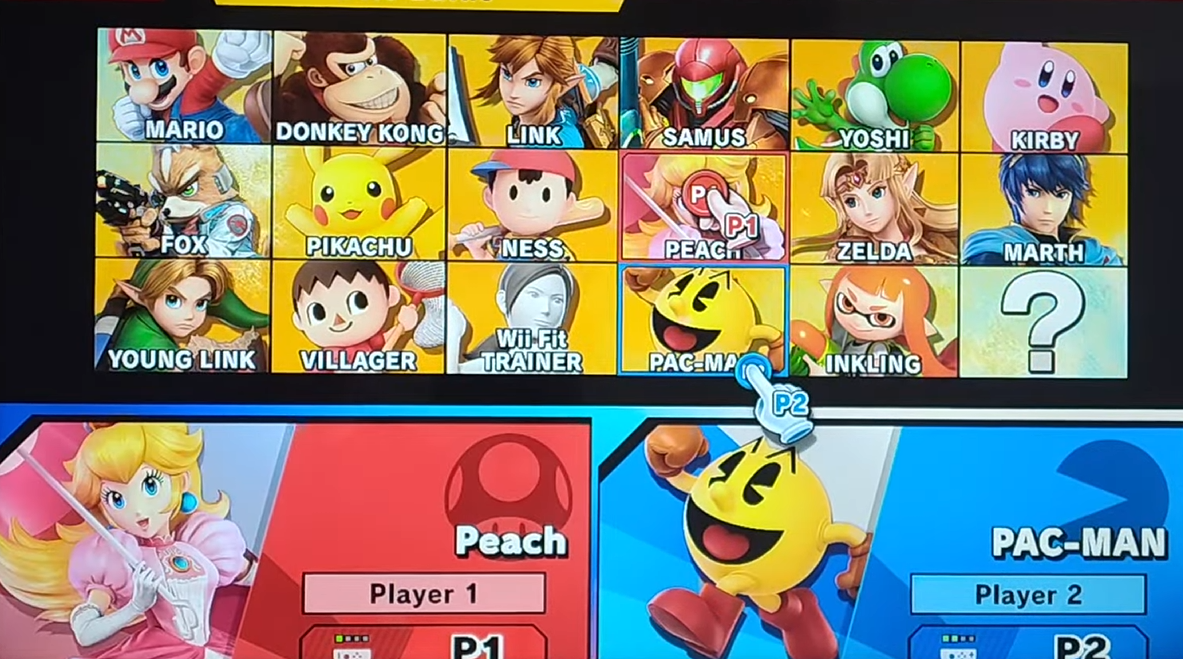
Each local player has their own pointer This is for educational purpose, please Nintendo, don’t sue my ass.
You will see this mostly in character selection menu in fighting games where you have P1 and P2 pointer floating around to indicate that player’s champion selection. This is hard & kinna tedious to implement in my opinion.
You will need:
One shared widget containing all the actual menu buttons.
A separate “pointer widget” for each player, showing only their cursor and selection state.
Pointer widgets mirror button positions/behavior from the shared widget (using CommonUI) and sync any shared actions (e.g., locking characters).
You already know how to manually add or remove local players.
But how do you let players themselves decide how many should join a session?
There are two main approaches.
1. Let the Primary Player Register/Unregister Others#
This is the most simple way to implement.
You will have a button or a slider that allow the primary player to add and remove local players. As you create new local players, it will automatically paired with any unpaired input device for you.
⚠️ But the binding is kinna random. If you have 4 gamepads connected and you only want 2 players in the session. Your players will have to figured out which in those 4 gamepads is currently controlling that 2 players.
This is what most party games do. A “Join Game” screen shows all available player slots, and anyone can join simply by pressing a button on their controller. The game detects which device sent the input and registers a new player using that device. This way, each player instantly knows which gamepad they’re using and the host doesn’t need to manage it manually.
Problem:
Only the primary player has a PlayerController, which can listen for input and interact with the UI. So how do we detect input from unpaired devices that don’t have a controller yet?
Solution:
Unreal provides a delegate that fires whenever any connected device presses or releases a key. Lyra’s source code includes an example of this system here’s the basic idea:
/** Delegate for overriding key input before it is routed to player controllers, returning true means it was handled by delegate */DECLARE_DELEGATE_RetVal_OneParam(bool,FOverrideInputKeyHandler,FInputKeyEventArgs&/*EventArgs*/);
You can get this delegate from a GameViewportClient::OnOverrideInputKey()
// Enable / disable whenever the "Join Game" screen visible / invisible
voidThisClass::EnableListenForInput(boolbEnable){bListenForLocalPlayerInput=bEnable;if(!bListenForLocalPlayerInput){// Stop listening: restore the previous handler
ViewportClient->OnOverrideInputKey()=CachedInputKeyHandler;CachedInputKeyHandler.Unbind();}else{// Start listening: store the current handler so we can call it later
CachedInputKeyHandler=ViewportClient->OnOverrideInputKey();// Bind our custom function to intercept all key inputs
ViewportClient->OnOverrideInputKey().BindUObject(this,&ThisClass::OnAnyInputKeyEvent);}}
In the function
boolThisClass::OnAnyInputKeyEvent(FInputKeyEventArgs&InputKeyEventArgs){// Check if it's correct key, event,
// Check if the local player exists yet by getting the Local Player using ControllerId
// If the player not exists, then register
// If the player exists, then unregister. BUT BEWARE OF NOT TO REMOVE THE PRIMARY PLAYER
// If none of the condition matches above, you can return the input back to the flow so the player controller can capture it
// By calling the CachedNative that we stored ealier
CachedInputKeyHandler.Execute(InputKeyEventArgs);}
This is a very common screen in any game. It seem useless but under the hood, it is registering the input device that press the key to control the primary local player. So that player can use that device to control the main menu. Imagining you have 4 gamepads connected to your game, without this screen, the player has to guess what gamepad is controlling the menu.
Solution:
We already have the knowledge about OnOverrideInputKey delegate from the previous section to listen for any device’s input without a specific player controller. So implementing this screen is quite simple:
Display the “Press Any Button” widget.
Bind to the OnOverrideInputKey delegate to start listening for input.
When any device presses a button, use IPlatformInputDeviceMapper::Internal_ChangeInputDeviceUserMapping to assign that device to the primary player. Note that this function only reassigns a device from one local player to another as it doesn’t automatically swap them. So you must call it twice (once for each player) to complete the swap; otherwise, one player will have two devices assigned while the other has none.
2.1 Your graphic will automatically degrade for splitscreen rendering#
This is understandable since you only have 1 hardware but now you’re simulating more than 1 player. The budget will be split down maximum 4 times. So Unreal have some mechanism to degrade the rendering quality by disabling some features.
Problem:
The most important note here is Lumen will be disabled if you have MORE THAN 2 local players in your game. It is clear that Lumen can be quite heavy even for one player. Even if you are building your game for high spec machine, Unreal haven’t provide any settings to turn this on.
Solution:
This can only fixed if you use custom build engine LumenDefinitions.h has the field #define LUMEN_MAX_VIEWS 2 which limits the lumen capacity. But increasing that number will cause the engine failed to compile because some of the lumen code is fixed to 2 and not use the constant macro. However, I fixed it you can cherry pick my Git Commit which has been commit to ue5-main.
2.2 Keyboard and First Gamepad will have the same FInputDeviceId#
Problem:
This causes problems when swapping devices. Unreal treats both the keyboard and the first gamepad as the same device, so swapping one also swaps the other. If you want to swap Gamepad ID 1 with Gamepad ID 0 of Player 1, Unreal swaps ID 1 and ID 0. Because the keyboard also uses ID 0, it gets swapped too.
Example:
Player 1:
- Gamepad — ID 0
- Keyboard — ID 0

Unassigned:
- Gamepad — ID 1
Result:
Player 1:
- Gamepad — ID 1

Unassigned:
- Gamepad — ID 0
- Keyboard — ID 0
Important:
This can make your player 1 (primary player) lose keyboard/mouse control. Not a critical bug, but important to know so it doesn’t waste hours of debugging.